Archive

Posts Tagged ‘network monitor’

Network Monitor: who’s watching World Cup online

June 11th, 2010 admin No comments

To football fans, today is a big day! FIFA World Cup opens today, Friday, June 11, 2010. They will spend the nights with the TV and bears. But our network admins will be drove crazy too. Why? The World Cup brings us great joys as well as certain network problems. Some of the crazy fans will watch or replay the competitions online at work. In these days, you will find your network traffic grows dramatically. I don’t want to be mean with the big fans, but we still have to do our work to maintain the network goes smoothly. How can we figure who is watching World Cup online at workplace? With Capsa network analyzer at hand, that would be so easy for you to monitor network, and prevent the network problems that World Cup may bring to your LAN.

Well, first we should make a list of football fans’ names and inform them not to watch videos online. And then we will keep an eye on our network utilization. When the utilization graph is high pitch, we know someone is disobeying the rules. Then we can check out who is consuming the bandwidth in the IP Endpoint tab.

But utilization cannot tell everything. We still need to spend a little seconds to check the protocols used in the network (Protocol tab). Special attention should be paid to protocols like P2P, RSTP and even HTTP. Online video takes a big portion of bandwidth so that we can easily find them out in the Protocol tab. The following figure shows that the HTTP traffic is abnormal which takes too much traffic.
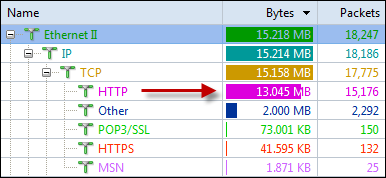
abnormail_http_traffic

When a suspicious protocol spotted, we should concentrate on it and check which IP address is generating the traffic in the IP Endpoint tab (figure below).
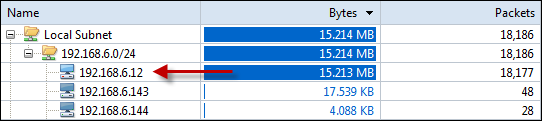
abnormal_http_machine

Then we could take a further step to prove our analysis. We can check out their conversations (IP Conversation tab), communication matrix (Matrix tab), and even we can go down to their original traffic packets (Packet tab).
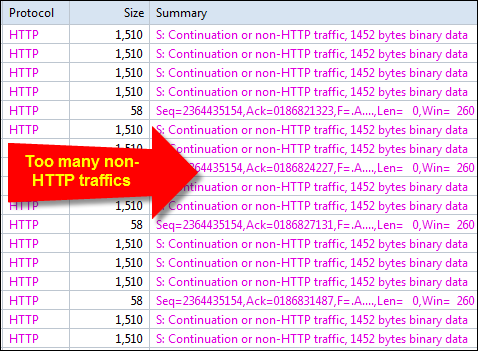
non-http

With the above tips, I’m sure you can guarantee a healthy network during the special World Cup time.

Monitor broadcast storm with Colasoft Capsa

July 29th, 2009 Willis Huang 2 comments

Causes of broadcast storm:

  • Incorrect network design and plan
  • Network equipment damage
  • HUB is easily lead to broadcast storm as broadcast equipment
  • NIC or switching equipment damage
  • Network loop
  • Incorrect router configuration
  • Virus

How to detect Broadcast Storm:

step1. Set up broadcast packets filter
Open Filter –> Add –> From Filter Table, check "Broadcast":

untitled-11

step2. Detect relevant parameters of the broadcast storm

untitled-21

1. Statistical parameters

  • broadcast packets bytes
  • total broadcast packets
  • packets per second
  • packet size distribution
  • protocol type
  • etc (add according to your own network)

How to make use of these paramaters?

Take a 100M ethernet for example. The maxmize packet per second is 12.5M x 1024 = 12800 Bytes/s. If the value of packet

per second of broadcast is greater or close to it, then we can define there’s broadcast storm.
The packets sum, number, and its size distribution are different according to the size of network.
Protocol Type is mainly to stats the protocols with the largest traffic utilization. (PS: Care must be taken to distinguish ARP

Request and ARP Response, ARP Request is broadcast, while ARP Response is unicast.)

2. IPID Identification of the packet

IPID is the unique flow to identificate the packet. If there’s a protocol in a large traffic utilization, we can check its IPID in

Packets view, if they are the same, we can confirm it is caused by network loop.

untitled-31

Currently, network loop is one of the mainly causes to broadcast storm.

3. Check the Utilization

untitled-4

How to make use of the utilization paramaters?

Utilization is divided into "Utilization (bits)" & "Utilization (percentage)". The computational process of network utilization is: bits per second(in "Summary" view) / network bandwidth(100M or 1000M Ethernet). Ordinary, the network is perfect if the utilization is 50% in a ethernet, we can get the conclusion that there must be broadcast storm in the network if the utilization of broadcast is over 30%.

Download the latest Capsa 6.9R2(windows 7 supported) to monitor your network perfermances in time.

How to monitor the network conversation.

July 2nd, 2009 Willis Huang No comments

Why should we monitor the network conversation?

In a network group, especially for the company, enterprise, school, bank, NSA, etc, the confidential information is very very important, and may very dangerous if they are divulged.

And also, for a company/enterprise boss, he can get the information of what his staff are talking about via internet, no matter they are using MSN, Yahoo, Gtalk, ICQ, AIM…or Email Webmail…at any time.

Under this situation, we need a network monitor/packet sniffer, not only to monitor the network conversation, but also to guarantee our network security for prevent it from dangerous beforehand.

Resolution
Take Colasoft Capsa 6.9 for example, We will show you how to monitor the email activity & content with it step-by-step:

1. Choose “Logs” from the main window.
untitled-12

2. As shown in the following illustration, there’s a pop up window for changing settings after you choose the “Logs”.
Email Log→Log File Settings, then change the settings indicated by an arrow.
untitled-22

3. Choose Email Messages in the Logs view, you can find the detail information on all the email activities.
untitled-32

4. Just double-click the crossband, then you can check out the content of any email you want to read.
untitled-42

Conclusion:

For every organization, institution, company, enterprise…etc, the confidential information is very important that are never allowed to be leaked out.

Except the traditional File Encryption, Video Surveillance, what can we do if we are in a huge network? Under this situation, a powerful packet sniffer/network analyzer is quite a good right-hand.