Archive

Posts Tagged ‘Capsa network analyzer’

How to monitor instant message activity with Capsa?

June 29th, 2010 Colasoft No comments

The latest released Capsa Network Analyzer 7.2 supports monitoring instant message activity, which not only gives us real time monitoring, but also auto-saving instant messages details to local disk. Whether a parent who has teenager kid, monitoring his teenager kids’ online activities like whom are they chatting with, what they are talking about are of great importance to make sure the kids are safe and will not be misled. Or a company policy requires taking some measures to guarantee the employees’ working efficiency, one of the measures is to find out who is chatting on MSN or Yahoo Messenger about some non-working stuffs. This article is to talk about how to monitor instant message activities with Capsa 7.2 as well as save the messages to local disk.

To monitor instant messages, we need first to enable the IM analysis modules in the analysis profiles, because none of them are enabled by double-clicking an analysis profile to change the profile settings.
analysis_profiles

If we’d like to create a new analysis profile only used to monitor IM messages. Right-click anywhere in this section, and choose New from the context menu and only enable the MSN and Yahoo analysis modules.
im_analysis_modules

Then click Next and then OK to finish the settings. Now click the big run button to start a capture.

When the main program is initiated and we go to the Log tab which holds the IM monitor results. In this tab, we’ll see two IM logs, MSN log and Yahoo log, including the time, sender’s account and the receiver’s account.

Not only can Capsa monitor all IM activities in our network segment, but also save these records to a csv file. Click the Export icon, and give the file a name. We can open the csv file with Excel to make a deeper analysis.
im_monitor_log

Someone may ask what if we are not around, is Capsa able to auto save the messages down to a file? Sure it is. Click the Log Settings icon, and click the Save Log File button. A new dialog box appears. Check Save to disk. There are two ways to save logs: save to a Single File and save to Multiple Files. For example, we enter the prefix for their name. And then decide how to split logs, say we split by everyone day. If we just want to save the latest files, we should check this and enter a number, say 30. We can read that we save everyday’s messages into a file, and just keep the latest 30. We’ll get the messages of the past 30 days. Now, any message goes from or to your network will be logged into a log file.
save_logs_to_disk

This is how Capsa monitors instant message activity and auto-saving the content to local disk. Hope it helps. And we have a video tuterial at our official site.

Capsa Network Analyzer 7.2.1’s Coming with IM & Email Monitor

June 21st, 2010 Colasoft No comments

June 22, 2010 – Colasoft, an innovative provider of all-in-one and easy-to-use network analyzer software, today announced the newest version 7.2.1 of its flagship product-Capsa network analyzer, which is the combination of powerful monitoring, alerting, and reporting capabilities. In this version, two long-awaited monitors are added in: IM monitor and Email monitor.

Emails are provided to employees as an efficient means of communication, along with this technological advancement are many collateral problems concerning enterprise information security, such as email worm thread, disclosure of trade secrets or other enterprises’ confidential information, etc. Capsa 7.2.1 provides you with powerful email monitoring. With the captured email file, you are accessible not only to basic email information such as client, server, sender name, time, etc, but also to the original content of the email. Capsa 7.2.1 supports auto-saving email content. All of the email information is captured and saved, which will serve as valuable electronic evidence when needed.

MSN (aka Live Messenger) and Yahoo Messenger are two of the most popular chat tools on internet, IM monitoring is a necessary and effective method for enterprises to ensure employees’ work efficiency. Capsa 7.2.1 gives a real-time instant message monitoring and recording. Capsa 7.2.1 is able to deliver the most accurate MSN and Yahoo messenger monitoring statistics which can be exported and saved for further analysis. To some extent, IM monitor helps enterprise achieve effective management as well as improve network and economic performance.

Besides IM and Email monitors, considering our users may have useful project files saved by version 6.9, Capsa 7.2.1 supports opening project file from Capsa 6.9.

Capsa 7.2.1 runs under Windows XP/2003/Vista/7. A trial version is available for download at the company’s website: http://www.colasoft.com/

About Capsa

Capsa is an easy-to-use Ethernet packet sniffer (network analyzer or network sniffer) for network monitoring and troubleshooting purposes. It performs real-time packet capturing, 24/7 network monitoring, reliable network forensics, advanced protocol analyzing, in-depth packet decoding, and automatic expert diagnosing. By giving you insights into all of your network’s operations, Capsa makes it easy to isolate and solve network problems, identify network bottleneck and bandwidth use, and detect network vulnerabilities.

About Colasoft

Ever since 2001, Colasoft has been an innovative provider of all-in-one and easy-to-use software solutions for users to monitor network activities, analyze network performance, enhance network security, and troubleshoot network problems. Currently, more than 5000 customers in over 80 countries trust the company’s flagship product, Capsa Packet Sniffer, as their network monitoring and troubleshooting solution. Featured customers include Alcatel, Airbus, Dell, Ericsson, IBM, Intel, and Pepsi. Learn more about Colasoft and its solutions, please visit http://www.colasoft.com/

How to monitor FBHOLE worm with Capsa network analyzer

June 9th, 2010 Colasoft 1 comment

We provide some tips on monitorring FBHOLE worm. In this article, we specificlly provide a step by step guide on how to build a fileter and monitor FBHOLE worm with Capsa network analyzer.

1. On the Start Page, click Packet Filter Settings link to open the Filter dialog box, which organizes all the filters.

packet_filter_settings_link

2. Click the Add button (on the bottom-left corner of the dialog box) to build a new filter.

new_filter

3.In the new window, choose Advanced Filter tab. And click the And icon. Choose Content from the context menu.

advanced_filter

4. In the Pattern Rule window, just enter keyword: fbhole.com in the Pattern text box. Then click OK to close the window.

pattern

5. Click OK again to close the Packet Filter window.

6. Check the Accept checkbox of the filter just built which enables the program only capture the packets containing keyword “fbhole.com”.

accept

7. Click OK and then start a capture.

8. If there is already a project running, you’d better stop it to build the filter and restart the capture. To build a filter in a running project: click the Filter button on the Ribbon. You will also see the Filter dialog box as well.

filter_ribbon

Google protects your search terms proved by Capsa network analyzer

May 27th, 2010 Colasoft 4 comments

google_ssl_search

Google announced last week that users can visit https://www.google.com to establish a secure connection for their searches, which Google says “helps protect your search terms and your search results pages from being intercepted by a third party on your network”.

In response to the worries that search terms are eavesdropped by third party on public Internet accesses, especially at public like WIFI hotspots at airport, Google offers a connection over HTTPS to protect your search terms been sniffed. The purpose of this article is to figure out how does the encrypted search connection work and see if it really protects you. As packets never lie, we will go down to the packet level to check the original traffic out. Let Capsa network analyzer to prove that. First let’s check out how the normal search goes.

Normal Google Search

First run Capsa Network Analyzer and start a capture, then visit http://www.google.com, enter the keyword Capsa, and click the Google Search button. Until now, we can clearly see a HTTP packet captured with the keyword “Capsa”. If in a public network, the hacker can easily get the GET request and figure out your search terms with little tricks.

normal_keyword

And another important way to get your search terms is to get the packet of your clicking on a link in the search results, which contains the keywords too. In this case we will click the second link in the results. When we go back to the packets, we can see there are two DNS packets, a DNS query and a response, then three-way-handshake with www.colasoft.com. The fourth packet is a HTTP GET packet.

normal_click_link

If you are interested in this GET packet, you will find a Referer string in it, which is pretty the same as the string in figure below.

normal_referer

Encrypted Google Search

After the normal search, we flush the DNS, start a new capture, and reopen the browser. This time we visit https://www.google.com, enter the same keyword “Capsa”, and click the Google Search button. The page loaded and we go back to the analyzer and find there are DNS packets and HTTPS packets, without any HTTP packets (figure E). As all transmissions are protected by SSL, we cannot find any search keyword in these packets, unless you have that power to decode them.

ssl_packets

Then we click the same link over the returned search results, and we find there are two DNS packets too and three-way-handshake and then a HTTP GET packet to load the Colasoft page. We can check this packet and find there is not a Referer string (figure F) in it. As google’s explanation, they’ve stopped transferring this value to the clicked page to prevent keywords being tracked.

ssl_click_link

Google also pointed out that the encryption search only protects you from keywords tracking but the website you visit later could also be spotted because of you DNS queries. And that’s something they cannot do about. But that’s not the topic of this article. We can sure that the new HTTPS Google search does what it alleged (you can learn more Google SSL search from http://www.google.com/support/websearch/bin/answer.py?answer=173733&hl=en). Furthermore, the society is talking about the network security more and more these days. We should always pay attention to our communications on the Internet, emails, social media communications and passwords, and so on.

How to Detect MAC Flooding Attack in your LAN?

April 6th, 2010 Colasoft 6 comments

In a typical MAC flooding attack, a switch is flooded with packets, each containing different source MAC addresses. The switch records these addresses to its CAM table. When the table is full, the switch cannot look up the right destination port, but to broadcast out on all ports. A malicious user could then use a packet sniffer running in promiscuous mode to capture sensitive data from other computers, which would not be accessible were the switch operating normally.

How to detect if there’s a MAC flooding attack in the network? In this article, I will demonstrate to you with Colasoft Capsa Analyzer.

For detecting MAC flooding attack. Let’s start capture, we start the analysis from the SUMMARY TAB. All these statistics seem right. Except one when we come to the Physical address count. There are more than a hundred thousand MAC addresses discovered in this network. How could this small network have so many machines? Possibly, it is a mac flooding attack.

1

We need to check the addresses in the NOD EXPLORE. Open the physical explorer, and look this number; there are more than 1800 MAC addresses in local segment. It’s abnormal; there is no way that so many machines exist in this network. And apparently, these addresses are not real. We are sure that there are worm activities, or attacks in the network.

2

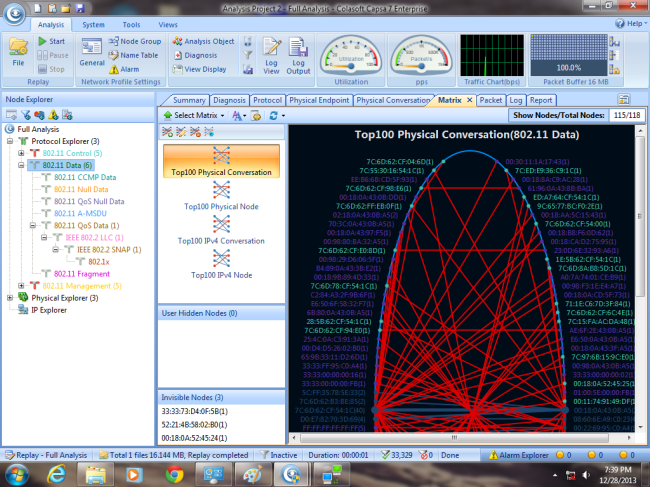
Let’s see how these nodes are communicating. Open the MATRIX TAB. And we choose Top 1000 physical node matrix type. We see this matrix, what a mess! There are so many nodes communicating, and according to the colors of the line, red means one way transmitting.

3

And we can go to the PHYSICAL CONVERSATION TAB to read that it’s true. Almost all nodes only send one packet out. Most packets are 64 bytes.
We know that all machines in our network are connected with a switch. This looks like a MAC flooding attack.

4

Still, to confirm our prediction, we need to see the original data of the packets they send out. Open the PACKET TAB. We see the delta time between packets is very small, which gives a great pressure to the switch. Almost all packets are 64 bytes. And let’s look at the original data in the packets. Almost all packets are randomly generated by padding same digits in the packets.

5

According to all these behaviors, and decoded information from packets, we are pretty sure that there is MAC flooding in this network. But it’s hard to find the attacker’s address directly because all addresses are forged. However, we can cut some machines off the network to eliminate the innocent machines until we find the target one.
Watch the video tutorial of detecting MAC flooding attack is avaliable at Here!

Review: Colasoft Capsa network analyzer from CrunchGear.com

August 4th, 2009 Tammy No comments
by Scott Merrill on August 3, 2009

matrix-view2
Chances are, if you’re in charge of supporting a network of any size, you’ll need to look at the actual packets that are passing back and forth across that network. Whether it’s to see whether a specific machine is sending or receiving packets as it should, or you want to see the contents of the packets themselves, you’ll need to break out a packet sniffer. There are lots of packet sniffers out there, with lots of different features and lots of different pricing models. Today we’ll look at Colasoft’s Capsa network analyzer.

At first blush, Capsa is like just about any other packet capture program available. It puts the network card into promiscuous mode and records all the packets it sees on the wire. Running counts are displayed showing information about the various packets on the network. As you can see in the image below, I captured almost 2000 packets in a minute and a half. No physical errors were seen, but 130 802.3 errors were recorded. Farther down you can also see a distribution of packet sizes.

capsa01

One of the things I found immediately useful with Capsa is the Diagnosis tab. Capsa pays attention to more than just plain old packet details. As you can see, Capsa identified slow ACKs, fast retransmissions, and more.

capsa02

Without a doubt, Capsa is a user-friendly program. Even if you don’t know much about the IP stack, you can learn a lot about what’s happening on your network with Capsa. It presents data in a very easy-to-read way. The Graphs tab shows some great visualizations of various network statistics. Such graphs are always appreciated by pointy haired bosses.

capsa03

Want a breakdown of all the traffic flowing across your network? Check out the Protocols tab to see a breakdown of traffic types on your network.

capsa04

The question I had when using Capsa was: Why would I pay cash money for it, when I can use Wireshark for free? I suppose there are still business entities out there that don’t truly understand — or trust — free software. Such companies would prefer the warm and fuzzy feeling they get knowing that there’s some commercial support behind the products they use, rather than a bunch of long-haired Linux-loving commie weirdos.

The real benefit to Capsa, from my point of view, is the user interface. It presents the data in an extremely easy-to-read way, such that you don’t need to be a hard-core network engineer to see what’s happening. So for a couple hundred bucks, even an entry level tech can reasonably understand what’s going through your network. And as previously noted, the pretty graphs will make managers happy.

Wireshark can do pretty much everything that Capsa does, but the interface isn’t as slick. Below are a few Wireshark screenshots, demonstrating some of the differences. There’s not a one-to-one comparison for each of them, obviously. Also, accessing some of this information is not as easy in Wireshark as in Capsa. For example, the packet breakdown is only available in the Advanced Info report in Wireshark, rather than a top-level tab.

wireshark01wireshark02

wireshark03wireshark04

Bottom Line: If you don’t want to become a network engineer, but want to get a better understanding of what’s happening on your network, Colasoft’s Capsa network analyzer is a pretty good choice.

Colasoft Capsa 6.9 R2 Now Fully Compatible with Windows 7

July 2nd, 2009 Colasoft 4 comments

We are so excited to announce a new version of our flagship product – Colasoft Capsa Network Analyzer. The latest released Capsa 6.9 R2 is now fully compatible with the current Windows 7 32bit and 64bit Edition, satisfying the users’ growing need for Win 7 compatibility.

Please check the following for new features and latest improvement of Capsa 6.9 R2. We hope you enjoy the new version! Any suggestions will be highly appreciated.

New Features:

  • Support Windows 7 32bit and 64bit Edition.
  • Packet Player: Support replay multiple packet files simultaneously.
  • Globally added two new options: alias(or hostname) and address can be displayed simultaneously.
  • There is a new option in the global Option settings users can enable to prevent hibernation when capturing.
  • New protocol ISL and FCoE can be recognized now.
  • Decoders for ISL, FCoE protocols.
  • Support Windows Server 2008 and X64 Edition.

Improvements:

  • An online help section activated in Start Page below Quick Link.
  • The Loopback won’t be shown in the NIC test wizard.

Bug Fixed:

  • A wrong value has been displayed in the decode area for IP Fragment Offset.
  • Users login as other windows ID will have to reactivate Capsa every time they login.

Download a Free Trial Now